Ingestion API
This guide lists steps to perform common operations using the Kwikee Ingestion API.
On this page:
The Red Text maps to exact header names in the “Kwikee Ingestion API Endpoint Reference Guide” document.
Attribute or parameter names are in single quotes like ‘assetId’
Values are in double quotes like “2000-01-01T00:00:00Z”
COMMON ACTIONS
CREATE AND PUBLISH A NEW PRODUCT
Use Ingestion API Dictionaries to find the appropriate brand ‘assetId’ for your new product
Use Create Product Version with product data structure
Use a ‘version’ value unique in and to your system
Use Kwikee Product Summary Query with the GTIN to retrieve the Product Version ‘assetId’ which was just created
The ‘versionString’ value in the returned structure matches the ‘version’ value used in the previous step
Create Image assets
Use Create/Update/Delete/Retrieve Product Image Asset with the image data as parameters
The image asset ‘assetId’ will be returned
Add all files to your product image ‘assetId’
Use Create or Update Product Image Asset Files
Publish the product and image assets
Use Ingestion API Dictionaries to find the appropriate permission group ‘assetId’
Use Adjust Permission Group with the “add” operation for the product version ‘assetId’ and each permission group ‘assetId’
Use Adjust Permission Group with the “add” operation for each product image ‘assetId’ and each permission group ‘assetId’
PUBLISH A PRODUCT VERSION
Use Kwikee Product Summary Query with the GTIN to retrieve the Product Version ‘assetId’
Use Ingestion API Dictionaries to find the appropriate permission group ‘assetId’
Use Adjust Permission Group with the “add” operation for the product version ‘assetId’ and each permission group ‘assetId’
UPDATE PRODUCT DATA
Use Kwikee Product Summary Query with the GTIN to retrieve the Product Version ‘assetId’
Use Retrieve Product Data to get the existing data structure
Update product data structure as needed
Use Update Product Version with product data structure
UPDATE PRODUCT IMAGE DATA
Use Kwikee Product Summary Query with the GTIN to retrieve the product image ‘assetId’
Use Create/Update/Delete/Retrieve Product Image Asset to get the existing data structure
Update product image data as needed
Use Create/Update/Delete/Retrieve Product Image Asset with product image data as parameters
PUBLISH A PRODUCT IMAGE
Use Kwikee Product Summary Query with the GTIN to retrieve the Product Version ‘assetId’
Use Ingestion API Dictionaries to find the appropriate permission group ‘assetId’
Use Adjust Permission Group with the “add” operation for the product image ‘assetId’ and each permission group ‘assetId’
ADD A PRODUCT IMAGE
Use Create/Update/Delete/Retrieve Product Image Asset with the image data as parameters
The image asset ‘assetId’ will be returned
Add the master file to your product image ‘assetId’
Use Create or Update Product Image Asset Files
Standard Kwikee saves will be generated from the file uploaded, which is considered the “master” file.
UPDATE A PRODUCT IMAGE FILE
Use Create or Update Product Image Asset Files
Standard Kwikee saves will be generated from the file uploaded, which is considered the “master” file.
PRODUCT IMAGE USAGE
This section provides a summary of Kwikee’s image asset attributes and how they are used. Given the great variety of product image types and specific use cases, please work with your Kwikee Project Coordinator to properly identify the images you are providing.
Please reference the “Kwikee API Image Identification” document, which should accompany this document, for detailed information on how Kwikee identifies product images.
STANDARD PRODUCT IMAGE SET
As defined in the “Kwikee API Image Identification”, the following information is presented as GS1 codes or Kwikee Special Purpose Codes. GS1 codes are a concatenated string in the following order, Image Type, Facing, Angle, and State.
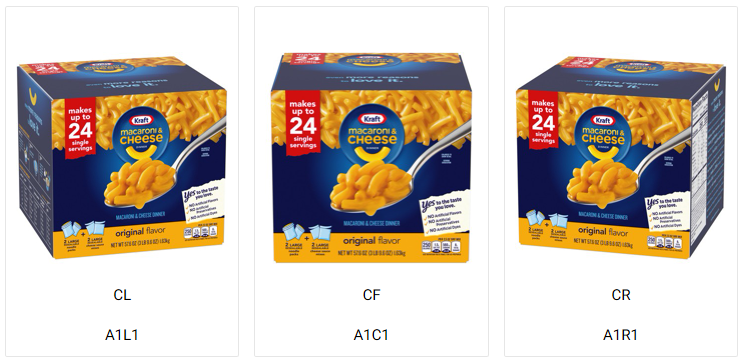
Three Primary marketing images
GS1 Codes: A1C1 - Front Marketing View
GS1 Codes: A1L1 - Left Angled Marketing View
GS1 Codes: A1R1- - Right Angled Marketing View
One or more appropriate panel images, depending on the type of product
GS1 Codes: L2 – Nutri-Fact Panel
GS1 Codes: L4 – Ingredient Statement
GS1 Codes: L5 – Ingredient Nutri-Fact Combo
Kwikee special purpose code: SFK
Kwikee special purpose code: DFK
SAMPLES
The following visuals, shows the new GS1 codes with the Kwikee legacy view code.
.png)
PRODUCTION WORKFLOW SUPPORT
Workflows within Kwikee are an ordered sequence of tasks, each of which is assigned to one or more teams. The production workflow support available in our API, provides the ability to assign a workflow to a list of assets, and the most common reason for using this feature is to request image processing on product images.
Please work with your Kwikee Project Coordinator when you are deciding what workflows you need to use.
CREATING IMAGES AND REQUESTING SHELFMAN FILE SAVES
The creation of shelfman file saves requires a set of product package image assets and the standard set includes all six sides of a product. These images are no plunge product facing images normally identified by GS1 codes: A1N1, A2N1, A3N1, A7N1, A8N1, A9N1.
Follow one of the processes outlined above to create each of the product package image assets
Record the image ‘assetId’s for the assets created that you need processed
Call the Kwikee Production Work Flow Support endpoint with the following parameter values
Name: “Digital Production: Shelfman”
AssetIds: Comma separated list of your image ‘assetId’s
These steps will create a group of image assets, for one or more products, and assign them the first task within the “Digital Production: Shelfman” workflow.
REQUESTING CLIP PATHS FOR A SET OF EXISTING PRODUCT IMAGES
Use Kwikee Product Summary Query with the GTIN to retrieve the image assetsIds for images you want to have clip paths
You can make multiple calls, with different GTINs, to build one list of image ‘assetId’s for many products
Call the Kwikee Production Work Flow Support endpoint with the following parameter values
Name: “Digital Production: Clipping Paths”
AssetIds: Comma separated list of your image ‘assetId’s